
Change or Disable the Blue Glow Around your Objects
Focus Glow is a feature imposed by most browsers to show that a link has been clicked. This feature is helpful for accessibility to show that they have clicked an object.
By default, you will see this as a blue box shadow around the object.

We will go through the steps of how to adjust that colour or disable it completely.
It is recommended to keep Focus Glow enabled for accessibility of your website
Changing the Focus Glow Color
- Download the following file and unzip it to your computer focus.css
- Unzip the file.
- Drag the focusglow.action.js file onto your PageCloud page while in edit mode and drop it on the page.
- A message at the bottom middle of the screen will appear stating “Run Action : FocusGlow”
- Open the left Sidebar.
- Click “Settings”.
- Click “Advanced” on the top right.
- Click to open up the head editor.
- You will see something that looks like this:
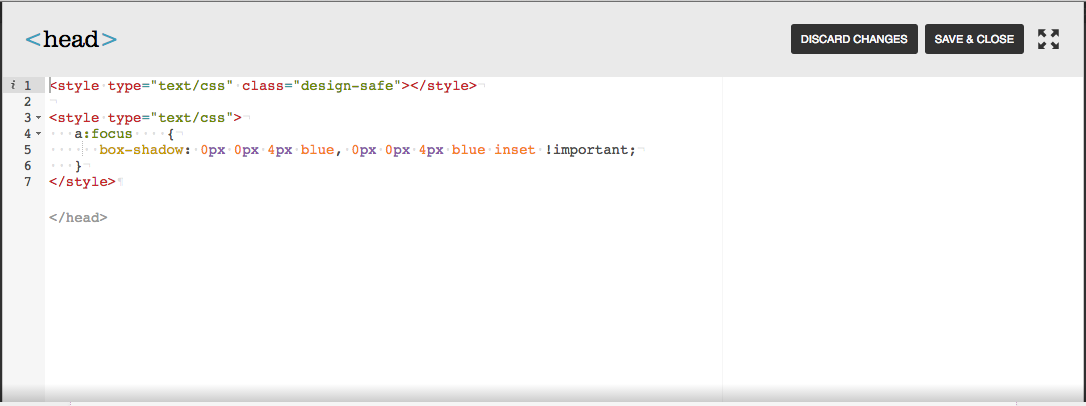
8. You will now be able to adjust the color by replacing the two mentions of ‘blue’ with the color you’d like to use.
9. You can typically input the name of the colors, such as blue, red, purple, etc. You may also use Hex and RGB codes.


10. You can replicate this on each page of your site in order to ensure all focus glows have been adjusted.
11. Click “Save & Close” after the change.
12. Click “Save” on your page.
Disabling Focus Glow
Disabling focus glow will prevent that box shadow from appearing whenever a link is clicked.
- Download the following file and unzip it to your computer:
removefocus.action.js - Drag the removefocusglow.css file that you’ve unzipped onto your page.
- This will need to be done on each page you’d like to remove that effect on.